
Sign In & Sign Up
Whether you're creating a new account or returning to an existing one, this guide walks you through both flows.
Sign Up
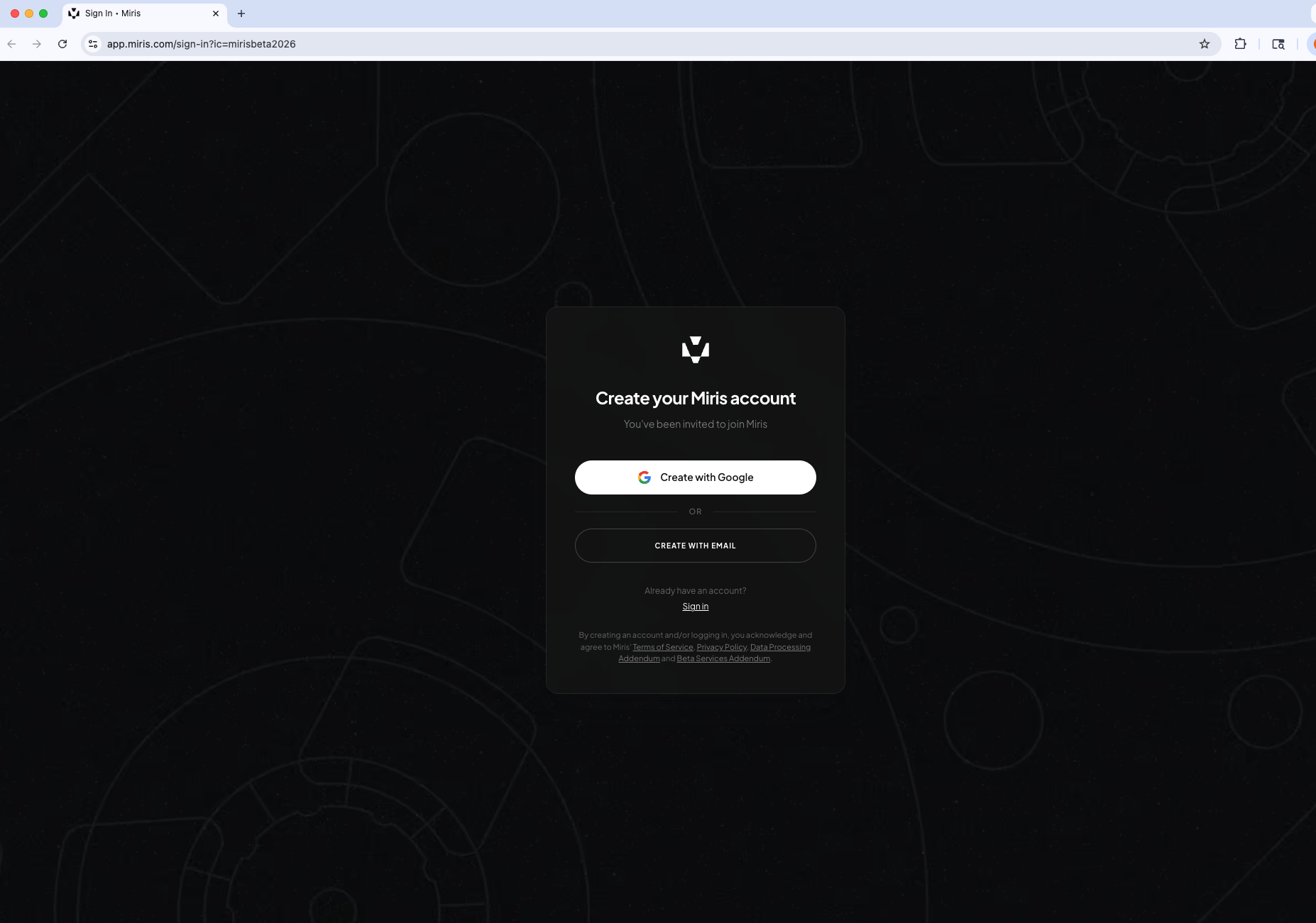
If you don't yet have a Miris account, you can create one using your Google account or an email address.
Note: If you arrive on the sign-in page instead of the sign-up page, click the Request Beta Access link to navigate to the sign-up page.
Sign Up with Google
- Click Create with Google and authorize with your Google account.
Sign Up with Email
- Click CREATE WITH EMAIL.
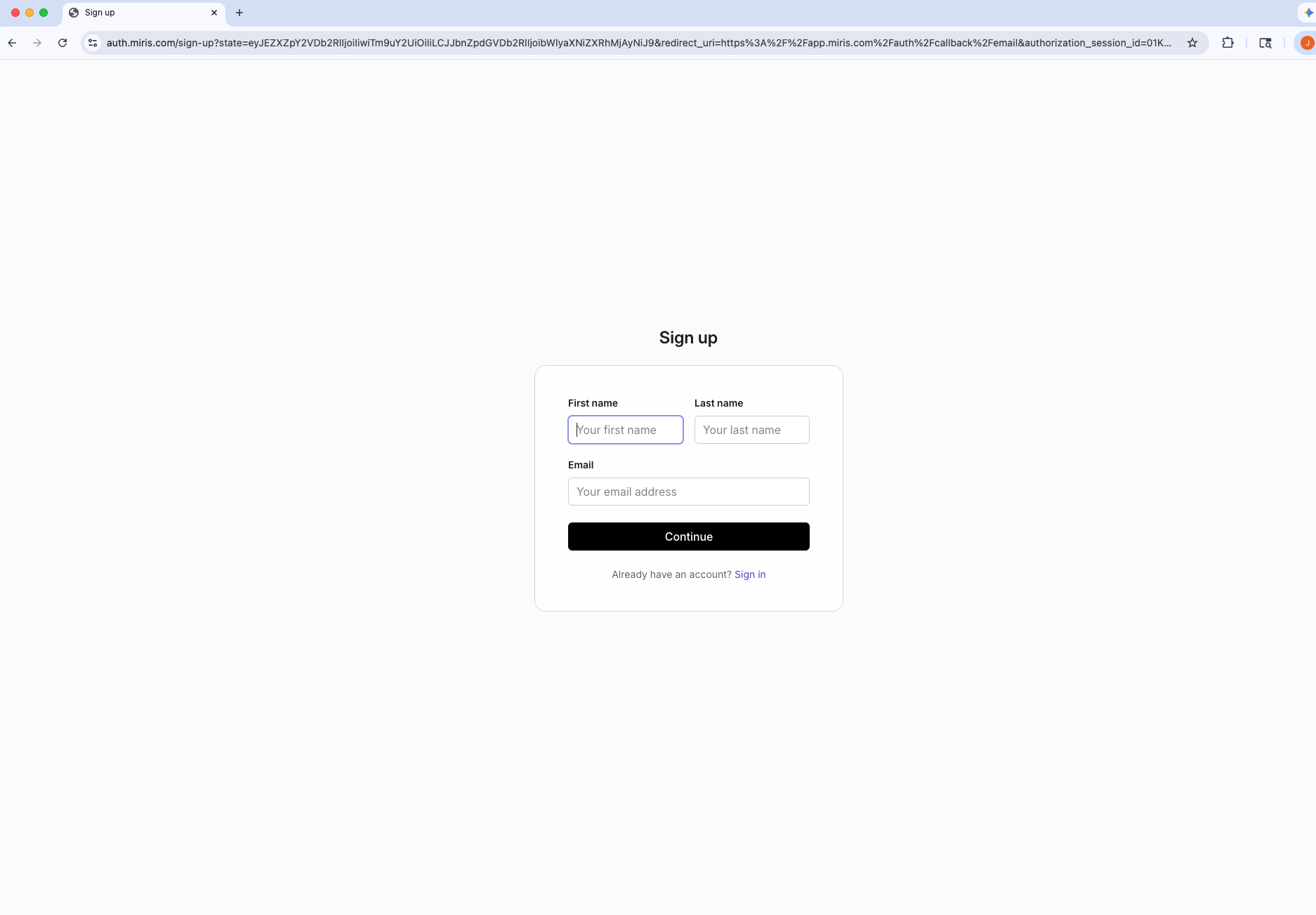
- Enter your first name, last name, and email address, then click Continue.
- Create a password and click Continue.

- Check your inbox for a verification code and enter it on the next screen.
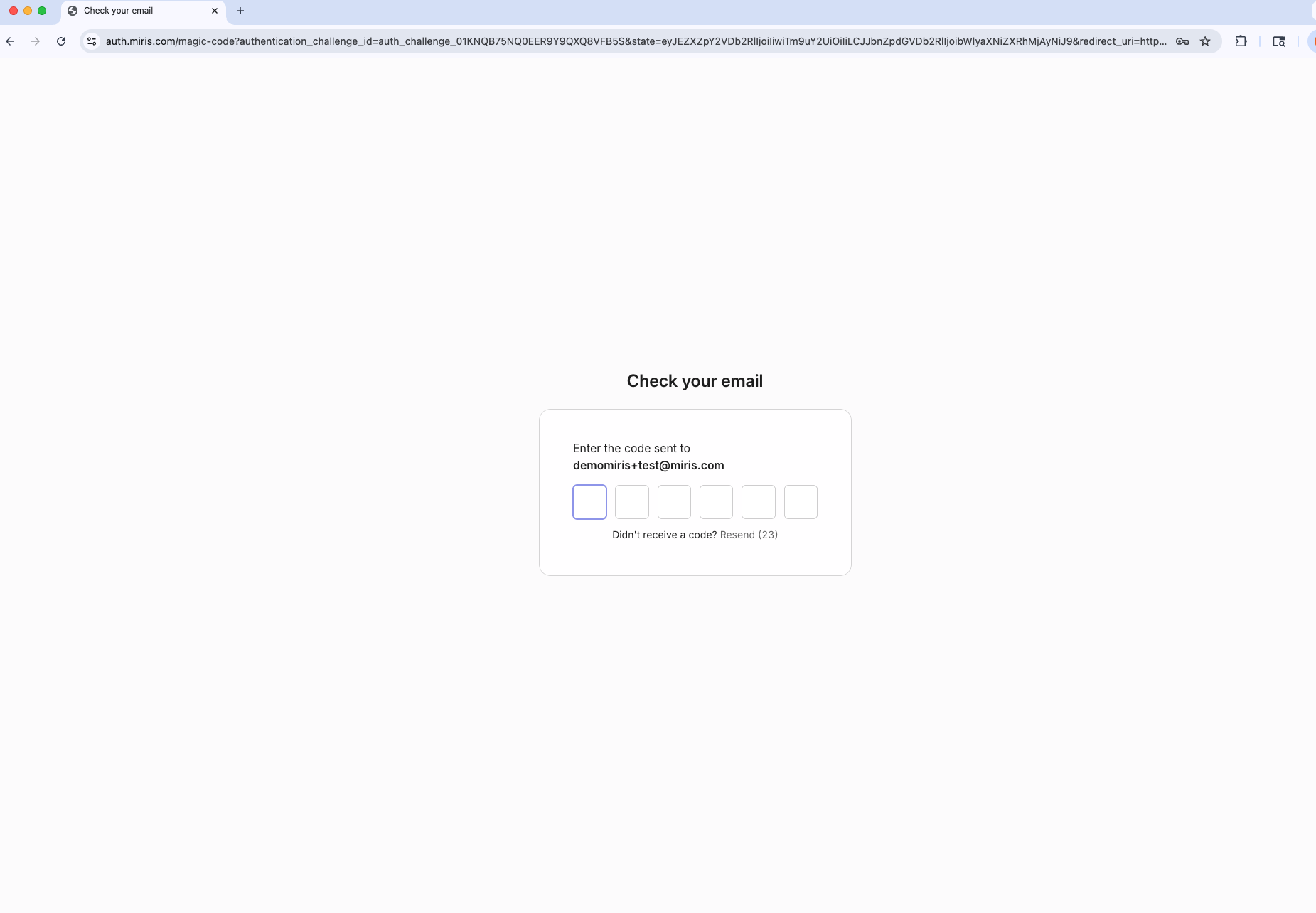
Caution: The verification code may take a few minutes to arrive in your inbox. Be patient — do not request a second code, as it will invalidate the first one.
Sign In
If you already have a Miris account, you can sign in with Google or your email.
Sign In with Google
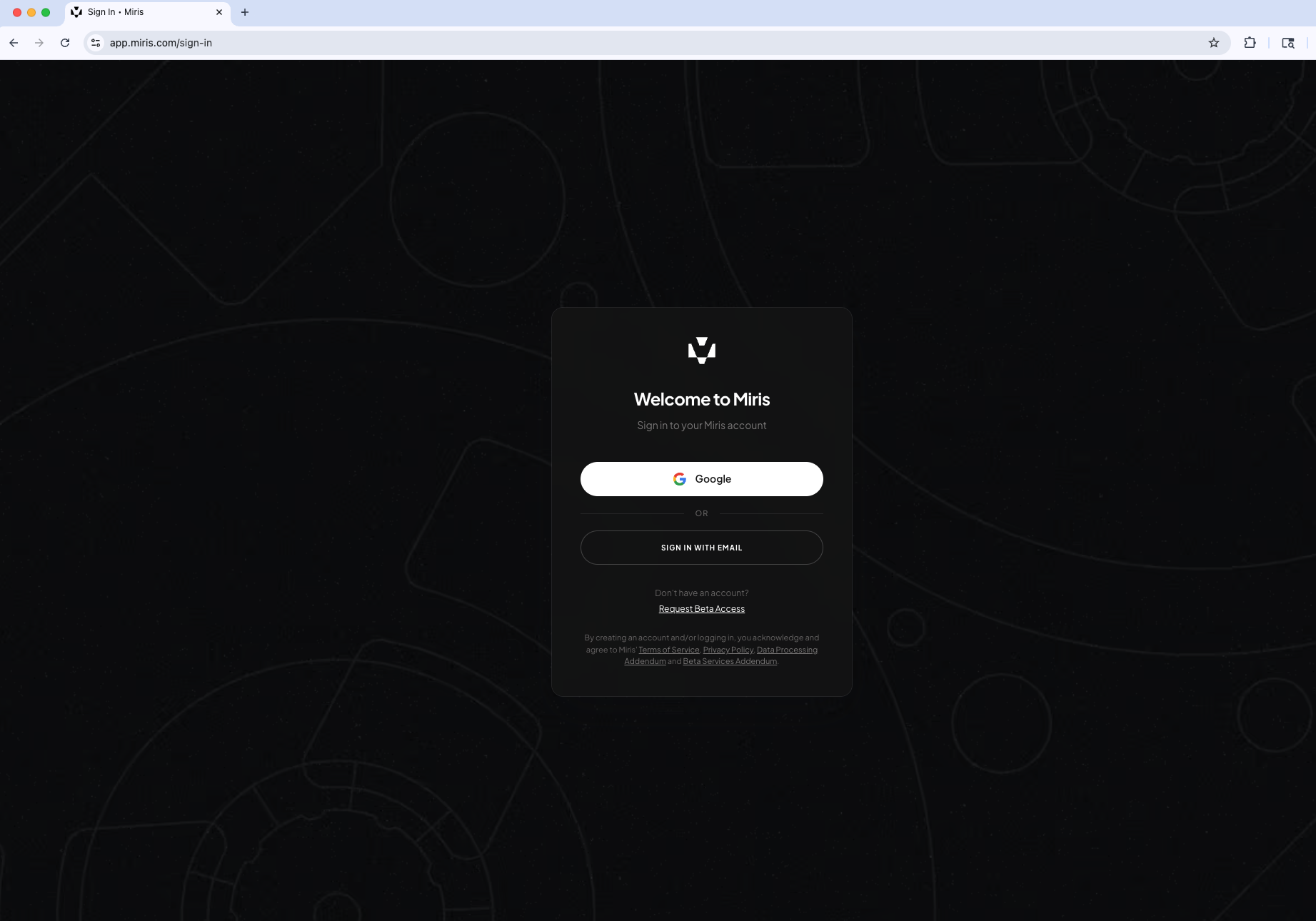
- Navigate to app.miris.com/sign-in.
- Click Google.
- Select your Google account to sign in.
Sign In with Email
- Navigate to app.miris.com/sign-in.
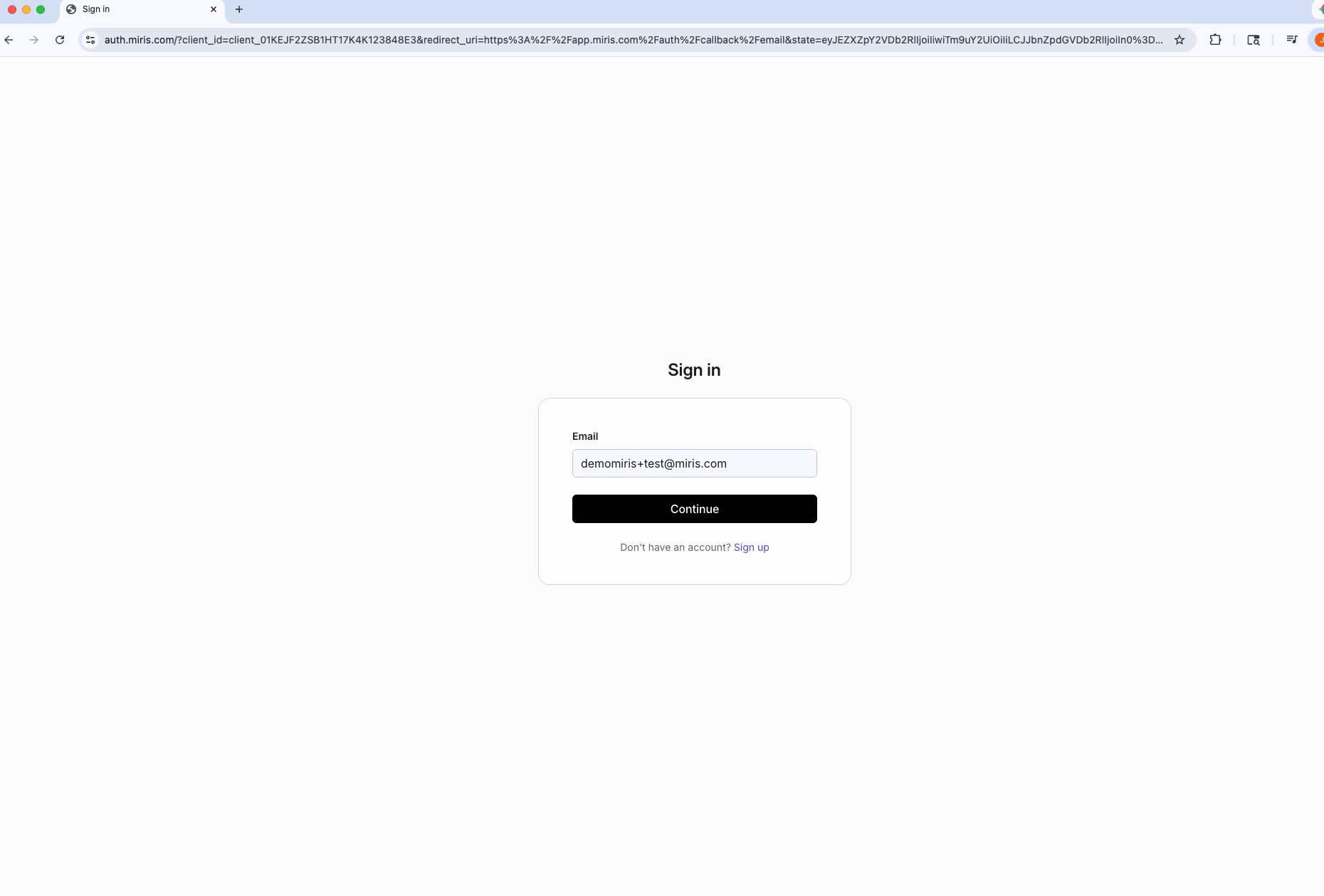
- Click SIGN IN WITH EMAIL.
- Enter your email and password, then click Continue.
Forgot your password? Use the Forgot password link to reset it.
Prefer a one-time code? Choose Continue with email code to receive a sign-in code instead of using a password.
Caution: The one-time sign-in code may take a few minutes to arrive in your inbox. Be patient — do not request a second code, as it will invalidate the first one.
Updated on: 21/04/2026
Thank you!